
Worxmate

WORXMATE
AI Intelligence Suite
Log In

Help Center > Frequently Asked Questions > Defining & Managing Goals >How to bulk assign goals to multiple employees?

How to bulk assign goals to multiple employees?

Step 1: Go to the PMS Homepage. Navigate to the Goal Analytics section & click on the “Create Goals”
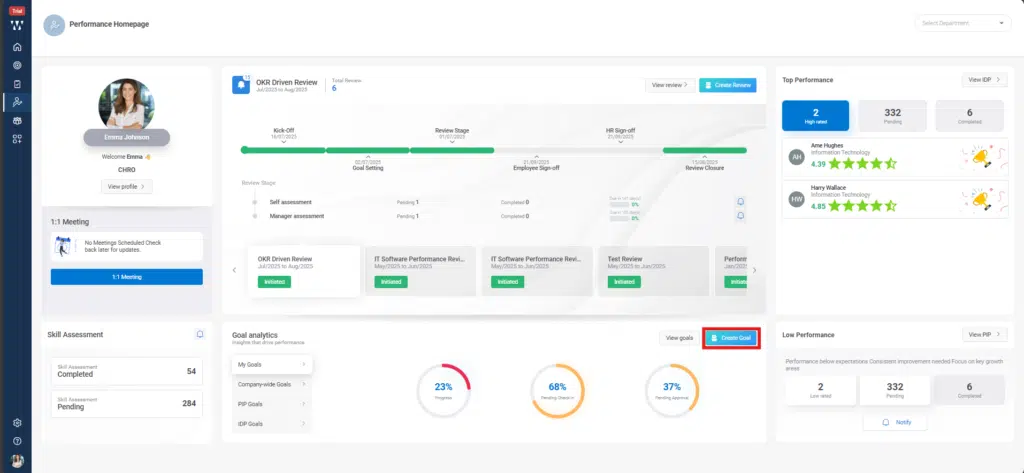
How to bulk assign goals to multiple employees? Step 1

Step 2: A window will appear where you need to enter the problem statement for your goal. This helps the AI suggest the most relevant goals for you and click on “Generate Goals”.
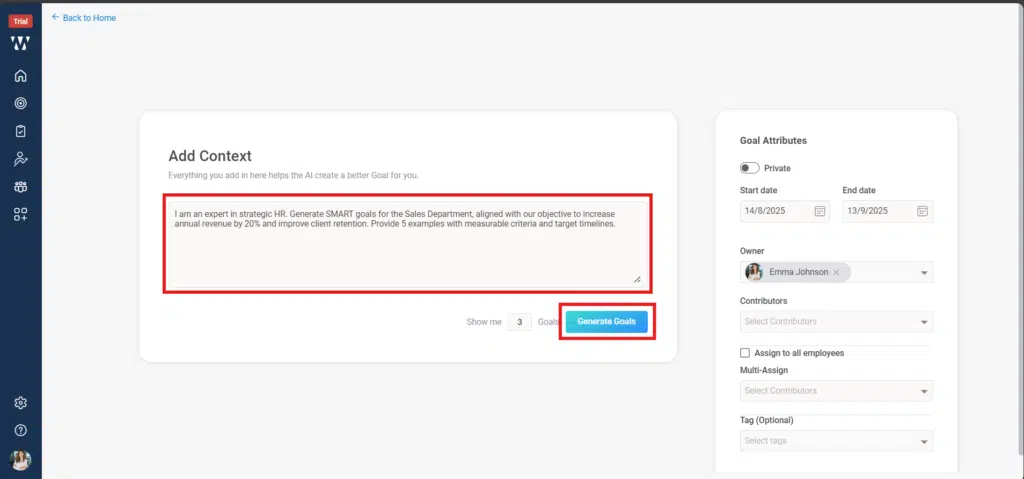
How to bulk assign goals to multiple employees? Step 2

Step 3: On the Suggested Goals screen, select the goal you want to assign (e.g., Enhance Sales Team Performance).

  • The goal will appear under Goal Attributes on the right-hand side.
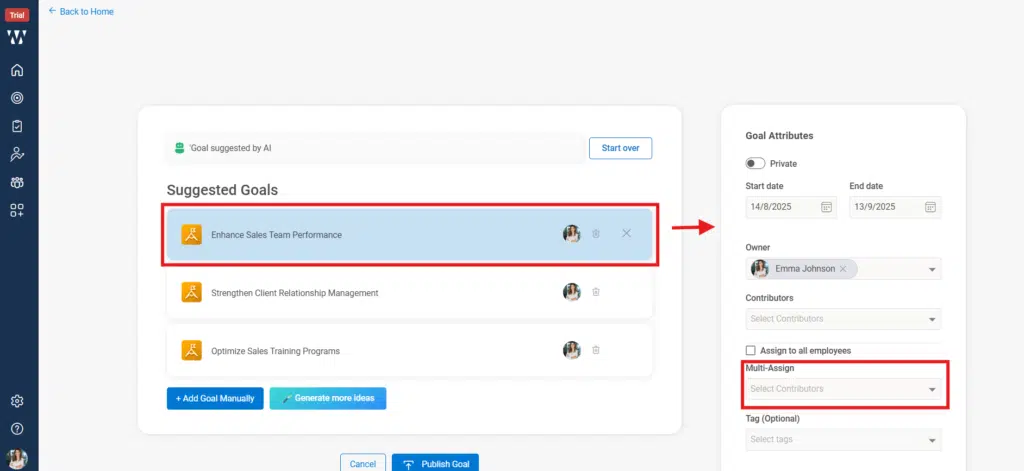
How to bulk assign goals to multiple employees? Step 3

Step 4:

  • Scroll to the multi-assign section.
  • From the dropdown, select the employees or teams you want to assign this goal to.
  • Once selected, review other attributes if needed and click Publish Goal.
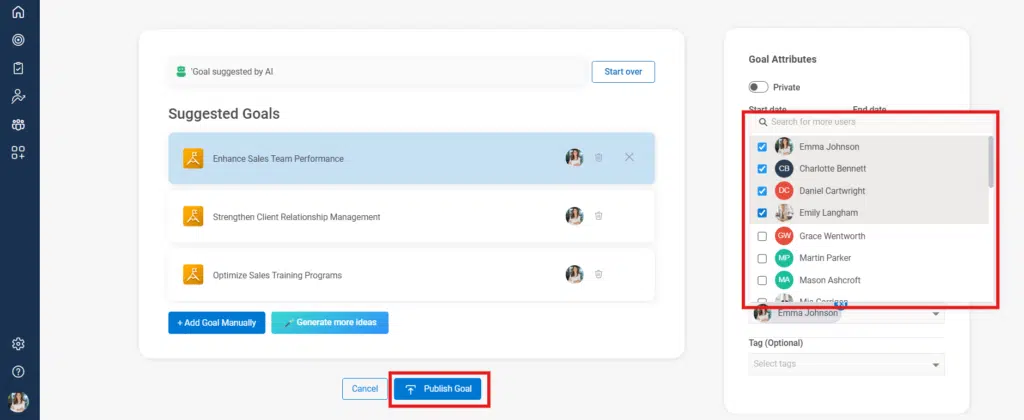
How to bulk assign goals to multiple employees? Step 4

Step 5: Once published click on the View published Goals to see final window.
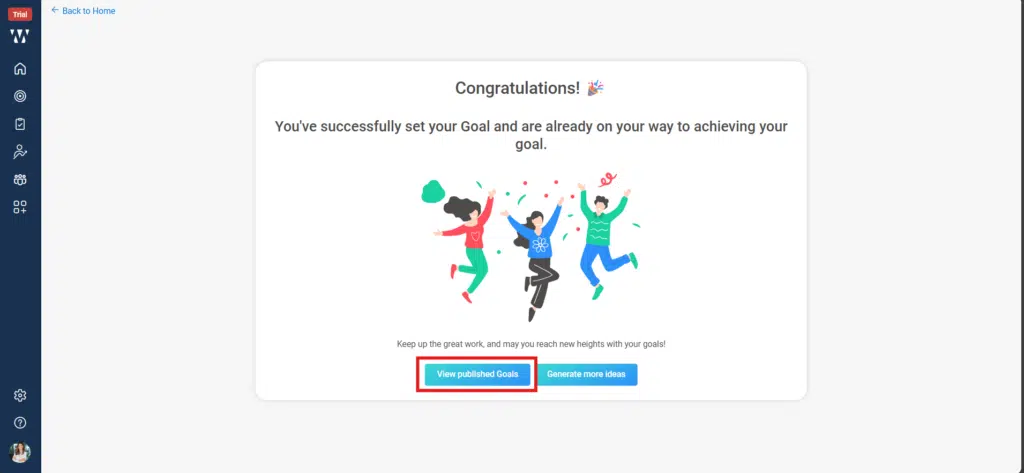
How to bulk assign goals to multiple employees? Step 4b

Step 6: The final window will appear with goals.
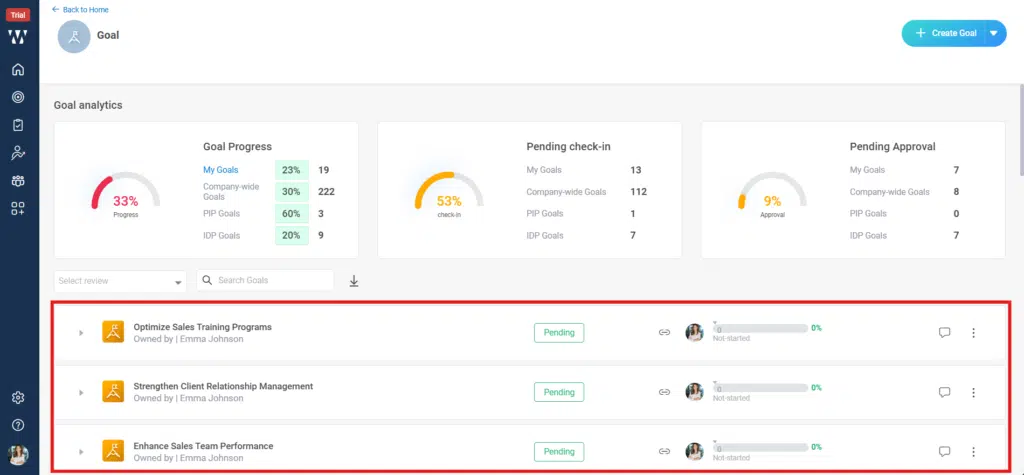
How to bulk assign goals to multiple employees? Step 5

Worxmate AI
Live 1-on-1 Walkthrough

See Worxmate AI in action.

We will configure live scenarios tailored to your company size, OKR cycles, and appraisal rhythms — zero generic pitch decks.

"Worxmate’s smart insights simplify team management—more intuitive than Zoho People."
— Senior HR Lead • Cloudaeon
    Available 30-Min Slots Pick a day
    Pick a date & time slot to proceed