
Worxmate allows you to switch between List and Card view for an insightful content scanning providing informative visual experience while overviewing OKR’s and to track associated OKRs.
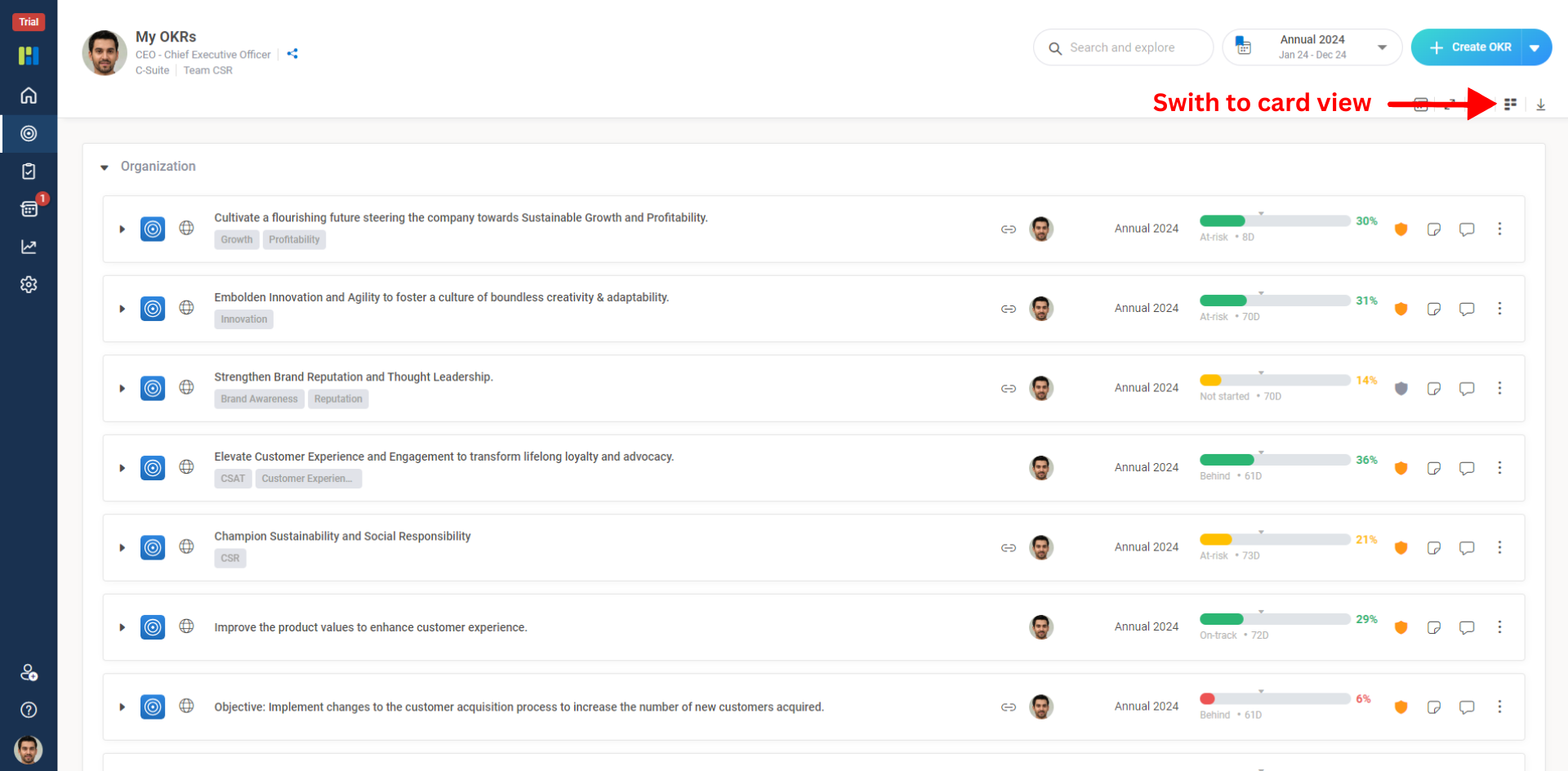
List View:
Every time you login to the Witsmate by default all the views are set to List view.
Drag and Drop feature to reorder the OKR’s listed under My OKR’s page is exclusively available under List View only.
To enable ‘Card view’ click on the Icon ‘Card View’ icon option available just above the list
Card View:
Card view enables you to overview OKRs alike a ‘Kanban View’ to visualize and assess progress, past check-ins, notes, comments etc. and three vertical dots to edit the Objectives and associated Key-results.
As marked in the picture below slide the bar to view other associated Key-Results of the selected objective.
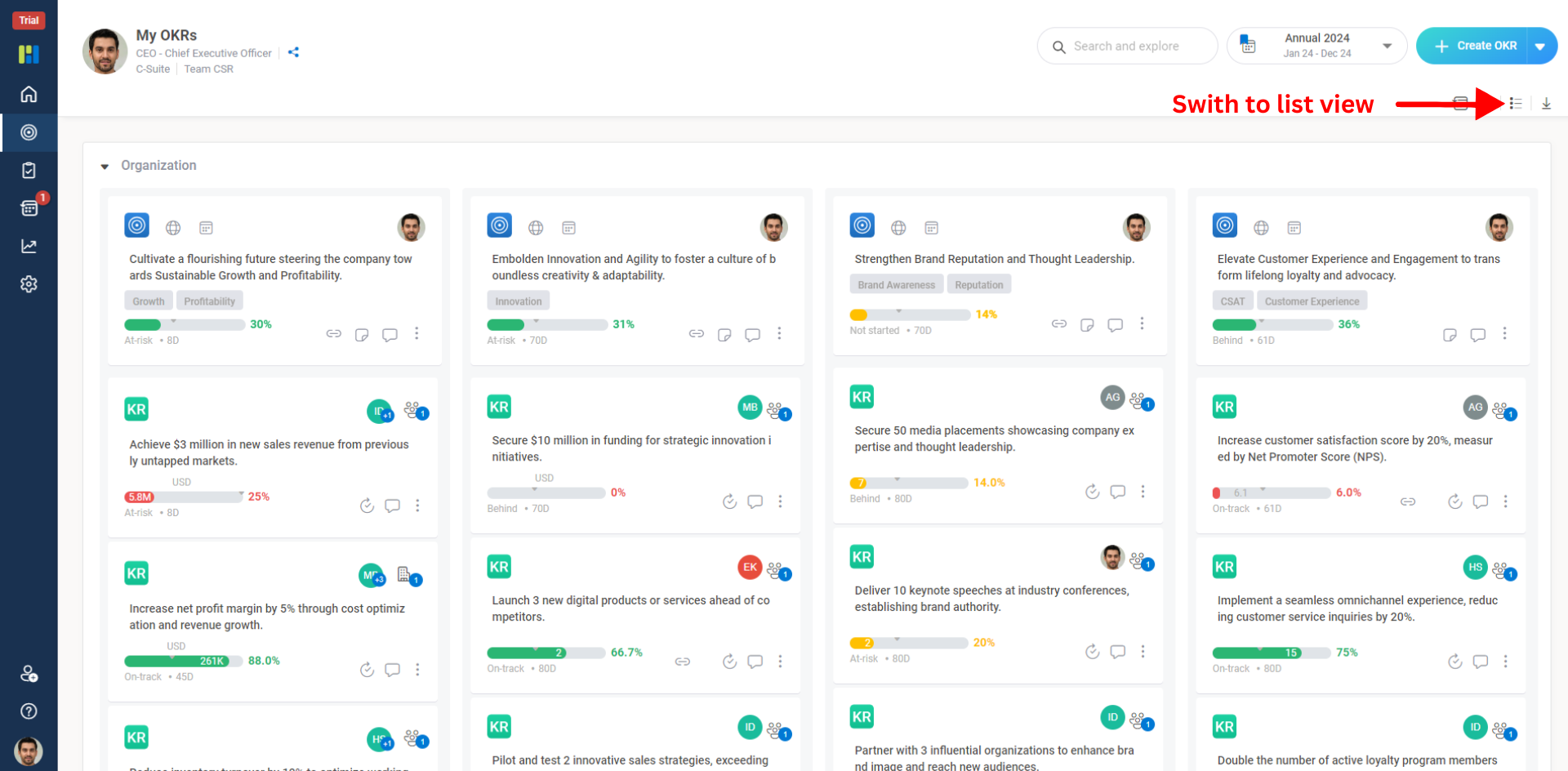
Note: You cannot use drag and drop feature in the Card View.