
Step 1: From the Home, Navigate to the settings

Step 2: From settings go to the Performance module and you’ll find different Performance settings there, click on “9 Box Matrix”:

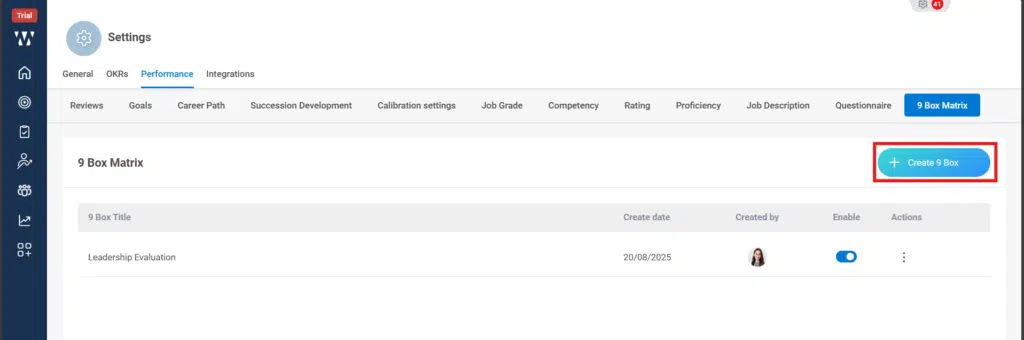
Step 3: When you click on 9 Box Matrix, the following window will appear, where you can find existing PMS matrix set in the organisation, to map the performance and potential axes, click on “+ Create 9 Box”:
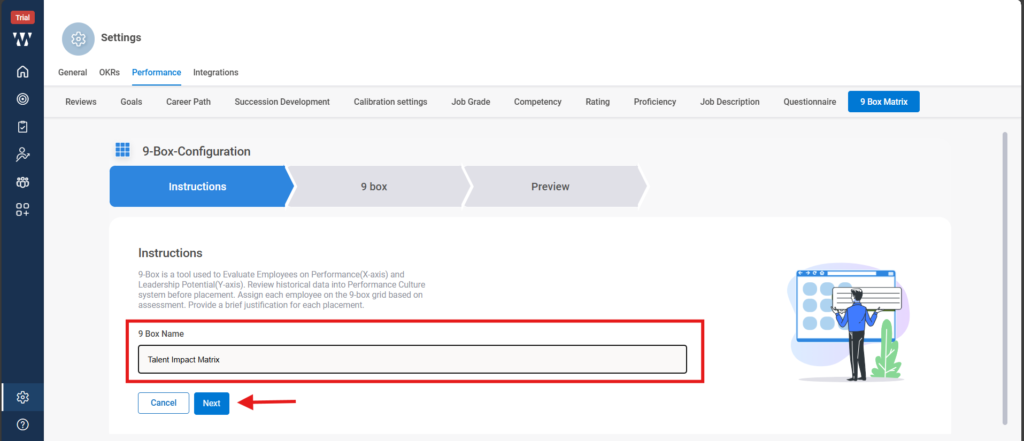
Step 4: When you click on it a following window will appear where you need to give a name to the 9 Box and click “Next”:
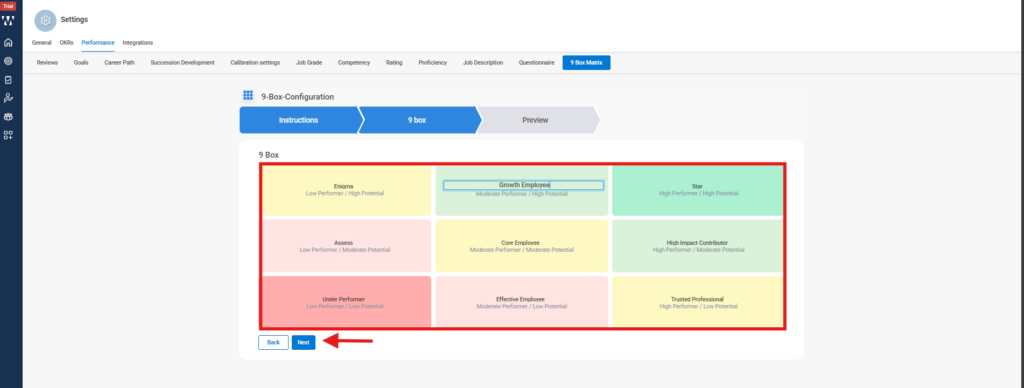
Step 5: When you click on ‘Next,’ the 9-Box will appear. Here, you can customize the box names as needed and then proceed by clicking ‘Next’ again.
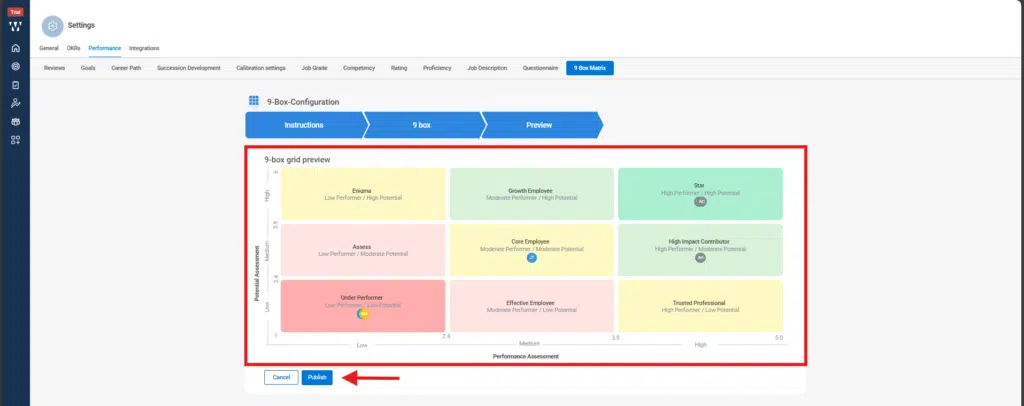
Step 6: The final Preview window will appear where you can see the 9 Box configuration that you have created and then click on “Publish”:
Step 7: The published 9 Box configuration will appear as follows, to map the potential and performance axes click on the published 9 box:
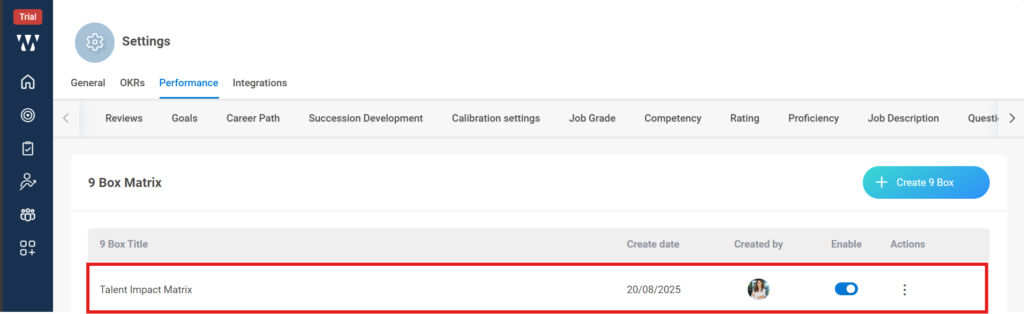
Step 8: The following 9 Box will appear as follows, where you can see the Dropdown for axes that you want to select for X axis/Y axis:
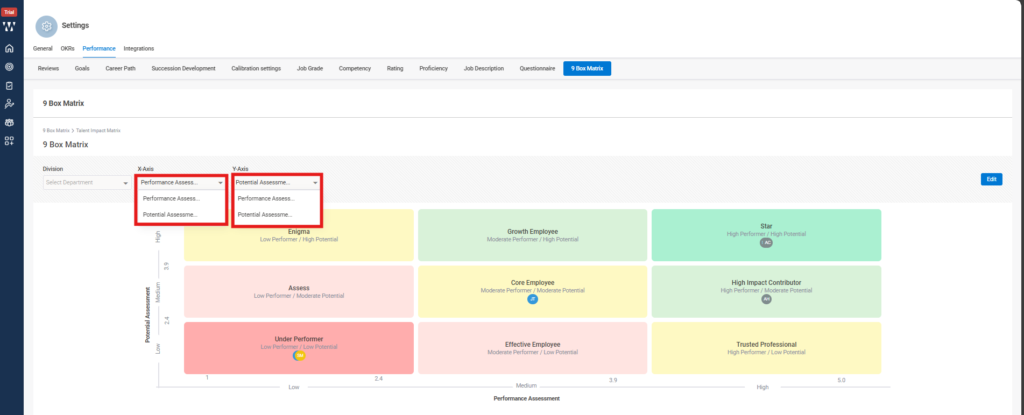
By changing the axes you can map and see the result you wish for.