
To add/edit the alignment of task with the key-results
1. Go to the My Tasks section.
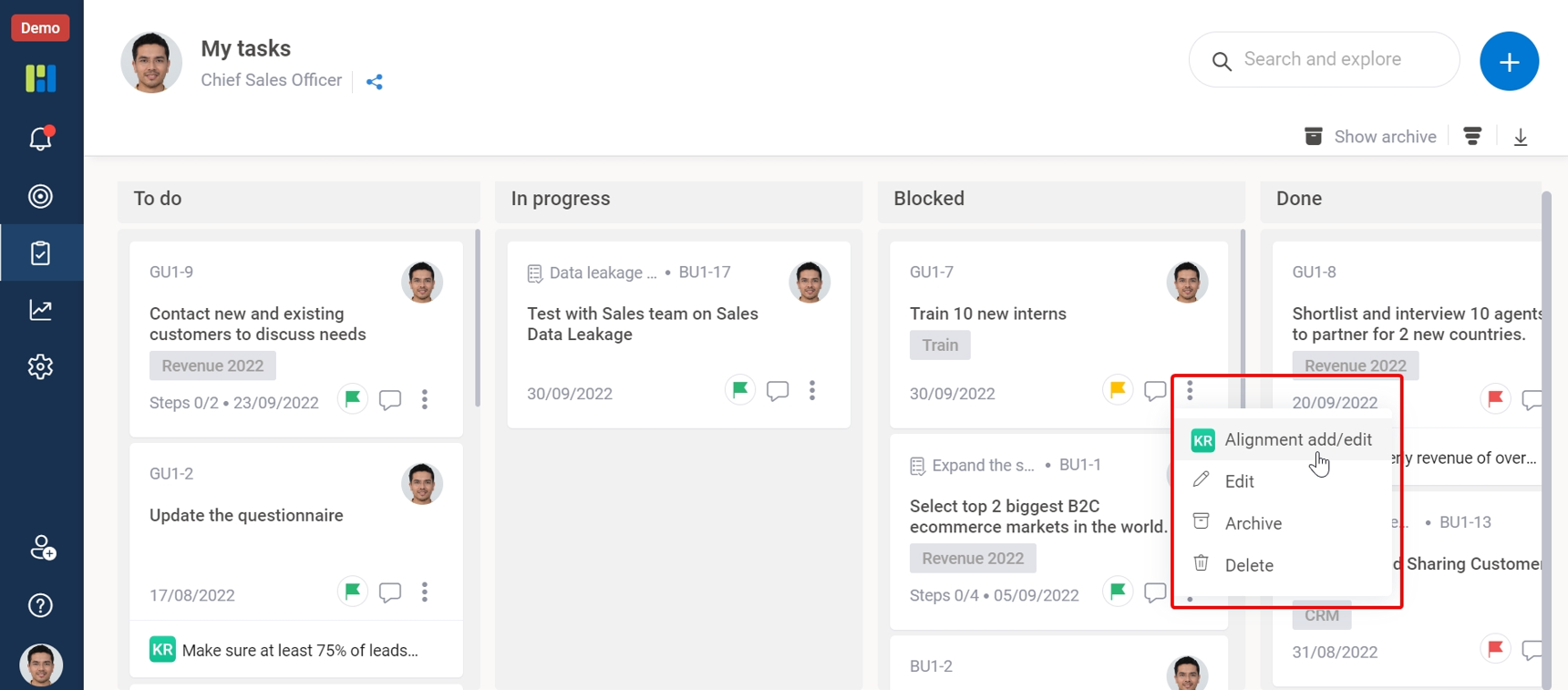
2. Click on the 3 dots icon on the task and select KR Alignment add/edit.
3. A new popup window will open where you can search for a key-result and align it to the task.
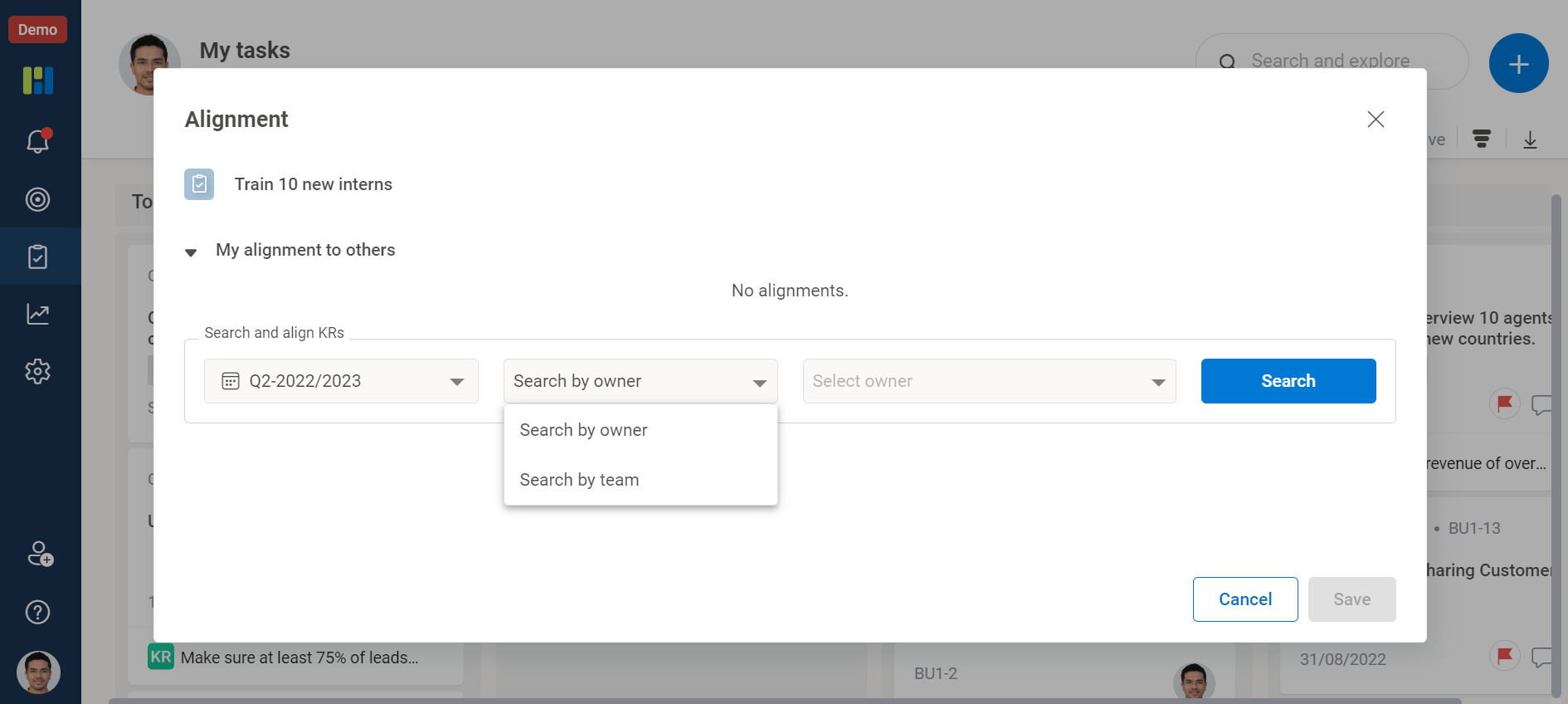
4. Any prior alignments that you have already set are displayed under the “My alignment to others” section.
5. To search the KRs –
a) First select the period from the Period dropdown list.
b) Then you can either search by owner or you can search by team.
c) If you have selected search by owner, then in the next textbox you will see a list of different names. If you have selected search by team, then you will see a list of different teams in the textbox.
d) Click on Search after making the appropriate selection.
e) The search results will be displayed below.
6. From the search results, select the objective and expand it to see the KRs under that objective. Hover over the required KR and click on Align button to align it to the task.
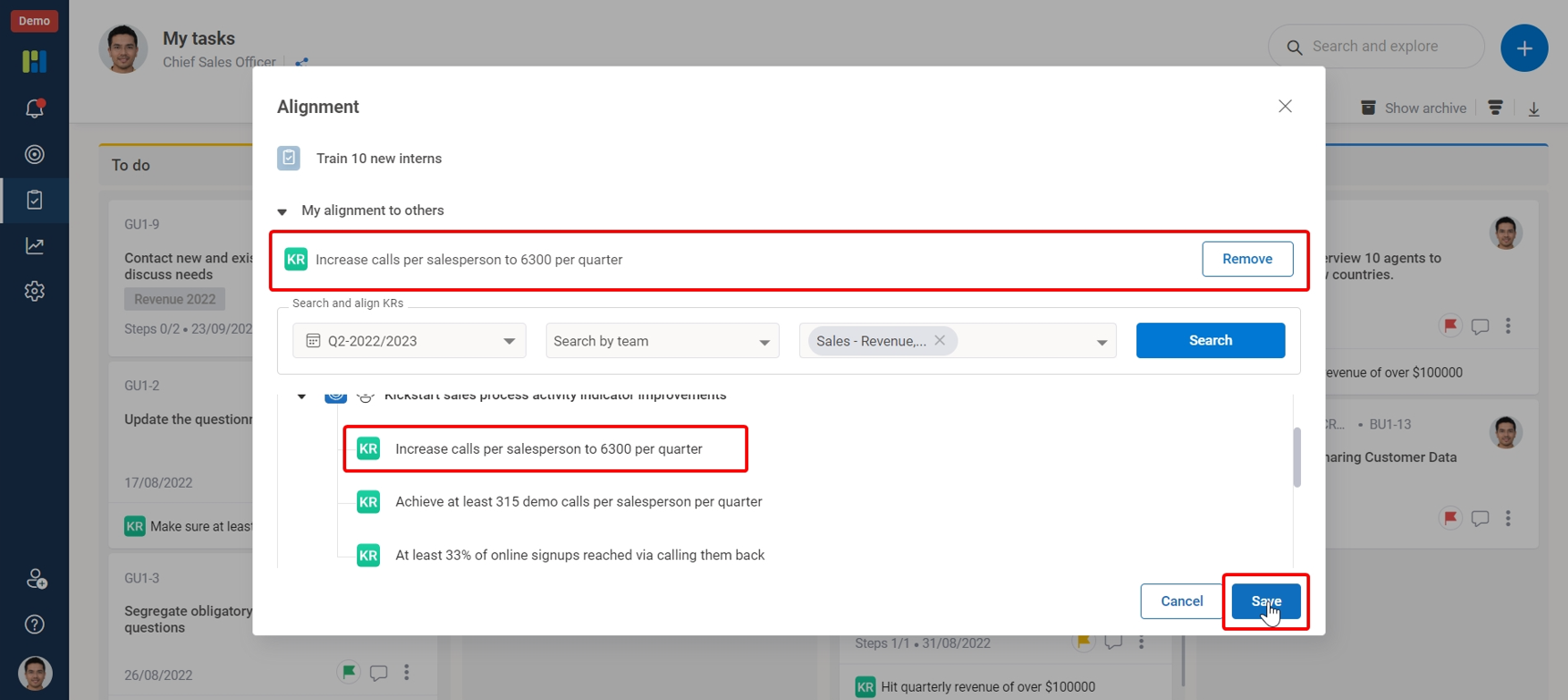
7. Then click on Save to save this alignment.