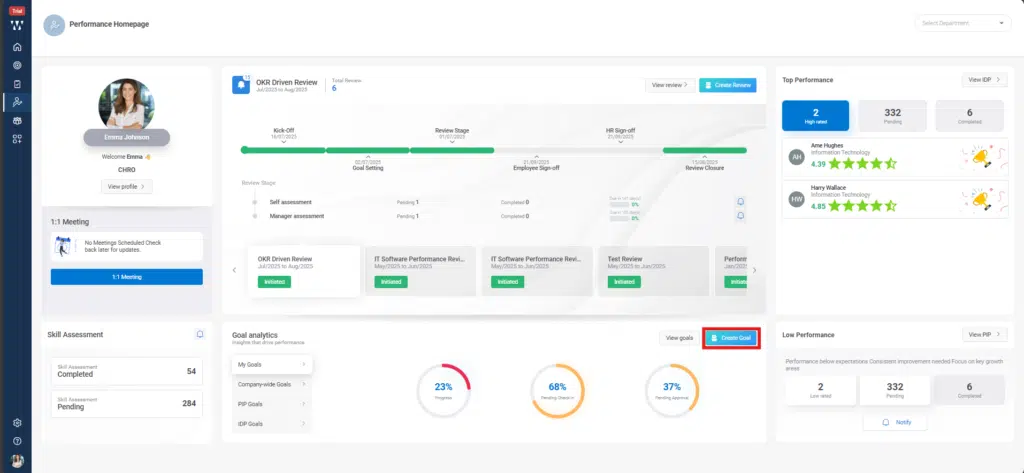
Step 1: Go to the PMS Homepage. Navigate to the Goal Analytics section & click on the “Create Goals”
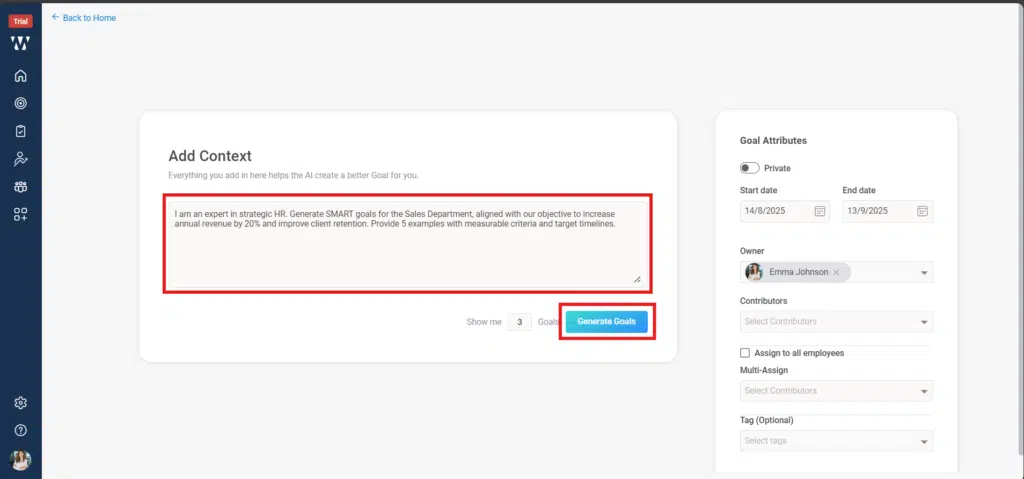
Step 2: A window will appear where you need to enter the problem statement for your goal. This helps the AI suggest the most relevant goals for you and click on “Generate Goals”.
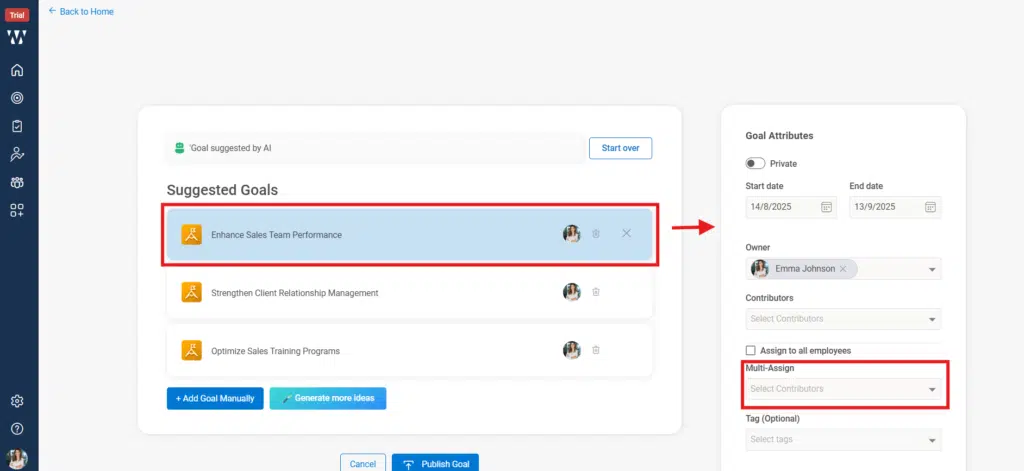
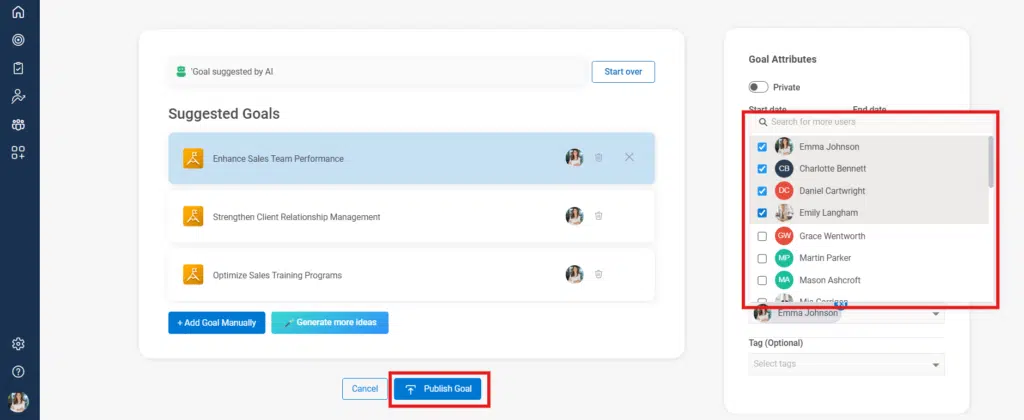
Step 3: On the Suggested Goals screen, select the goal you want to assign (e.g., Enhance Sales Team Performance).
- The goal will appear under Goal Attributes on the right-hand side.
Step 4:
- Scroll to the multi-assign section.
- From the dropdown, select the employees or teams you want to assign this goal to.
- Once selected, review other attributes if needed and click Publish Goal.
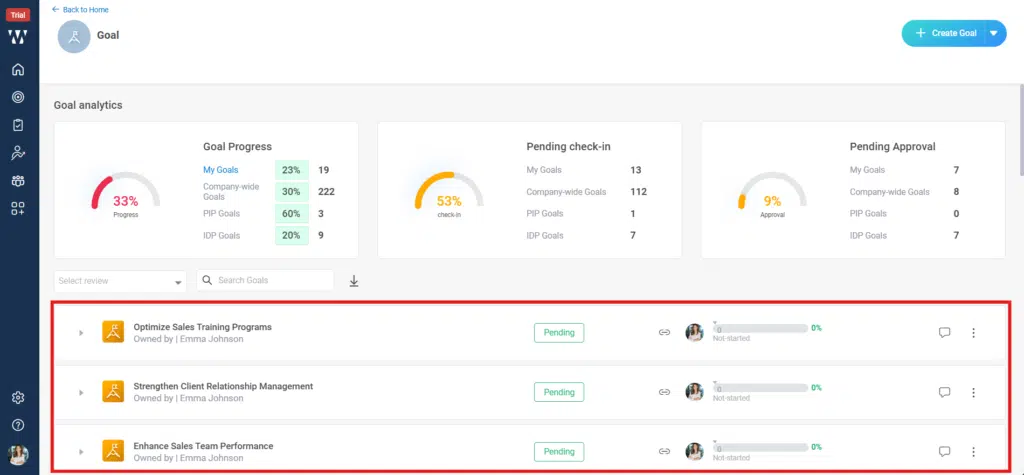
Step 5: Once published click on the View published Goals to see final window.
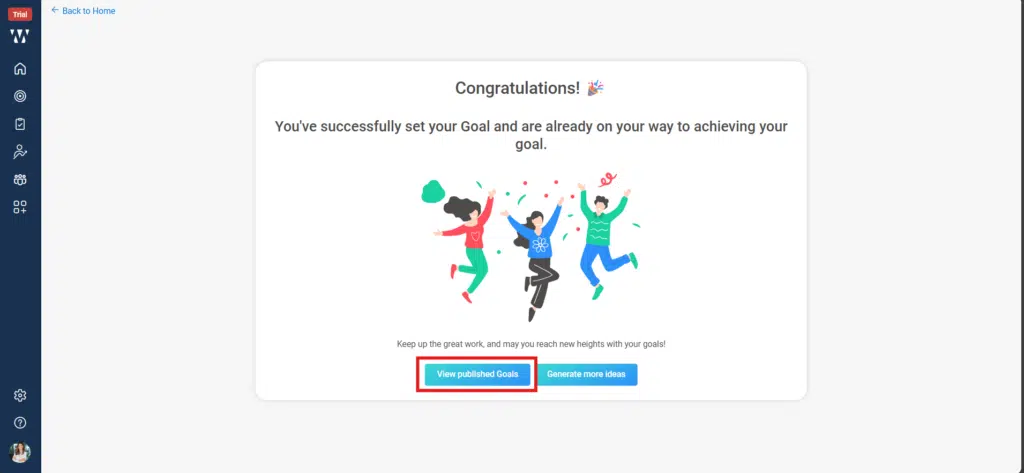
Step 6: The final window will appear with goals.